Create Files and Directories#
reading
We will loosely follow the Software Carpentry Working with Files and Directories lesson from The Unix Shell
Let’s start in ~/shell-lesson-data/exercise-data/writing:
cd ~/shell-lesson-data/exercise-data/writing
Making a new directory#
We want to put a new document here (our thesis) and we will organize it in its own sub-directory.
The command to make a new directory is mkdir (for make directory). We can do:
mkdir thesis
and then change directory into it and print the current directory:
cd thesis
pwd
This should show something like:
/home/mzingale/shell-lesson-data/exercise-data/writing/thesis
Tip
Don’t use spaces in directory or file names. This makes navigation difficult.
Likewise, don’t start a directory or filename with a -, since most commandline tools
will interpret this as an option / flag.
Creating a new file#
We already did a quick example of creating a hello.cpp earlier,
using the nano editor. Let’s create a new file now, called
thesis.txt:
nano thesis.txt
The editor will open with an empty file. Write a few sentences, like the screenshot below
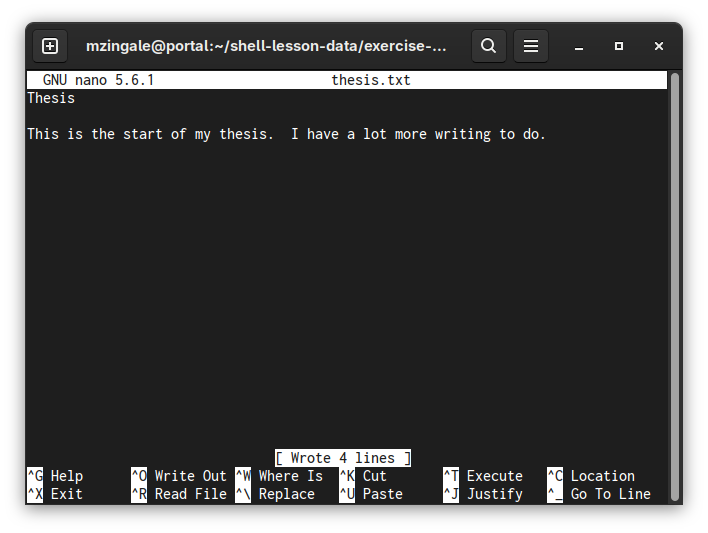
Fig. 1 The nano editor with our thesis.txt#
Now save it using the combination Ctrl-O to write, and the exit with Ctrl-X.
Try it…
Sometimes we need a file to exist, but we don’t care if there is anything
in it. We can use the touch command for this—if a file with the
name does not exist, it will create it as an empty file.
touch topics.txt
We can see the file sizes by using the -l flag to ls:
ls -l
This will show something like:
total 4
-rw-r-----. 1 mzingale mzingale 75 Jan 19 13:08 thesis.txt
-rw-r-----. 1 mzingale mzingale  0 Jan 19 13:16 topics.txt
There are a lot of columns here, but the 5th column gives the size in bytes for our file.
Looking at our file#
If we do ls, then we’ll see our file.
If we want to see the contents of the file from the command line, we can use
the cat command:
cat thesis.txt
Tip
For very long files, the output will scroll past our screen without stopping.
Instead we can use the more command, which acts as a pager. We’ll
see this more in a bit.
Summary#
We learned the following commands:
mkdir: make a directorynano: a basic text editortouch: update a file’s timestamp (and create an empty file if it does not exist)cat: display the contents of a file (it has other uses which we’ll explore later)
Exercises#
Try it…
From your home directory, create a directory / file structure that looks like:
project
├── code
├── data
│   ├── experiment-01.txt
│   ├── experiment-02.txt
│   └── experiment-03.txt
└── results